
Avocent LRA185KMM Equipment information & support
The Vertiv Avocent LRA185KMM is a 1U rackmount LCD KVM console drawer featuring an 18.5-inch 16:9 LED-backlit widescreen display, full-size keyboard with numeric keypad, and integrated touchpad, designed for seamless local server access.
Equipment information
- Brand
- Vertiv
- Equipment model
- Avocent LRA185KMM
- Equipment type
- KVM systems
- Controller / software version
- Confirm against the installed equipment
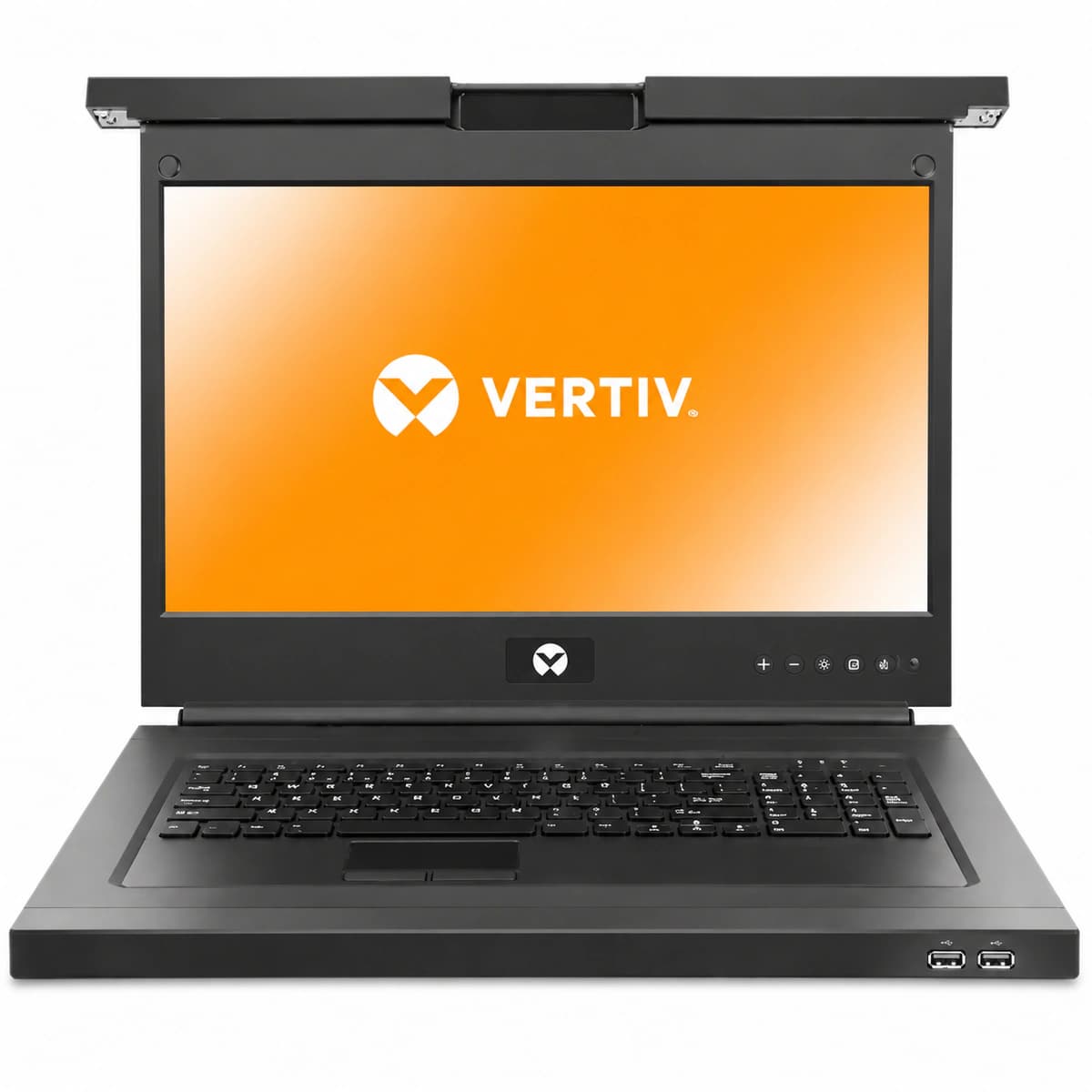
Information below comes from the current product catalogue. Confirm the controller, software version and configuration of the installed equipment separately.
- Native Screen Resolution
- 1920x1080 Full HD Resolution
- Keyboard & Touchpad Module
- Full-Size Keyboard (NumPad) + Touchpad
- Front Pass-Through USB
- 2x Front USB Type-A Pass-Through
- Video Input Compatibility
- VGA / DVI Dual Video Input
- Screen Size & Aspect Ratio
- 19-Inch Rackmount
- Chassis Form Factor
- 19-Inch Rackmount
Alarms & troubleshooting
Access Complete Maintenance & Full Alarm Troubleshooting Manual
This page lists high-frequency critical alarm codes commonly encountered in field maintenance. Comprehensive manufacturer troubleshooting matrices, board-level repair guides, detailed electrical schematics, and firmware commissioning manuals are delivered alongside equipment upon formal project procurement, accompanied by dedicated FAE technical support.
Share on-site information
- 01
Identify the exact model
Record the nameplate, system model and controller or module model.
- 02
Keep the alarm details
Record the full alarm text, indicator colour, timing and whether it persists.
- 03
Describe recent changes
Note recent replacements, software updates or configuration changes.
Record information visible in the existing interface. Electrical measurements, disassembly and replacement should follow the applicable manufacturer's manual and be performed by qualified personnel.
Related technical articles
Browse the technical guides or send a question about this model.
View all articlesNeed a replacement module or supporting equipment?
Confirm the full model, system configuration and compatibility requirements before enquiring about suitable products.
Have a model and an on-site issue?
Share the exact model, alarm text and observed symptoms to help identify relevant information and compatibility requirements.